-
Winter Photos 2013


A sunny day in March 
A sunny day in March 
Sisters 
Birds-eye view into my home office 
Our porch 
Tea break on the balcony 
Massive pile of snow near our home. 
Wintery street in Kuopio -
Switching to Android after 4.5 years of iOS

After over four years of using an iPhone daily (first a 3G and then an iPhone 4), for the past month I’ve had the pleasure of using the Google-sanctioned LG Nexus 4 as my work phone. Trying to have a positive angle on things, I put together a short list of things I like about both OS’s:
Things I like about Android
- The freedom to choose my default browser/camera/whatever
- Third-party apps are less restricted by the OS
- The notification system (mostly)
- Superior autosuggest system (both in the stock keyboard and alternatives such as SwiftKey)
- Widgets
- Google Now (have no experience of Siri though, since it wasn’t supported on the iPhone 4)
- Integration into Google’s ecosystem and support for multiple Google accounts
- Automatic app updates
Things I like about iOS
- Better scrolling and touch responsiveness in general (not sure how much this is a hardware issue)
- Consistent, well thought-out UI
- Despite #2 in the previous list, overall better selection of quality apps
- Better default lockscreen notifications
- Seamless integration with Mac OS X
A few words about the hardware
A big part of the experience is of course defined by the hardware. The Nexus 4 is a very powerful but elegant phone, and I have found myself truly enjoying the big 4.7″ screen. Surfing the web and reading articles definitely feels less cramped, but I couldn’t imagine going any bigger, at least on a day-to-day phone. The camera on the Nexus 4 is OK, clearly better than the iPhone 3G but worse than the iPhone 4.
-
My Dev Setup, part 3: Browser Testing
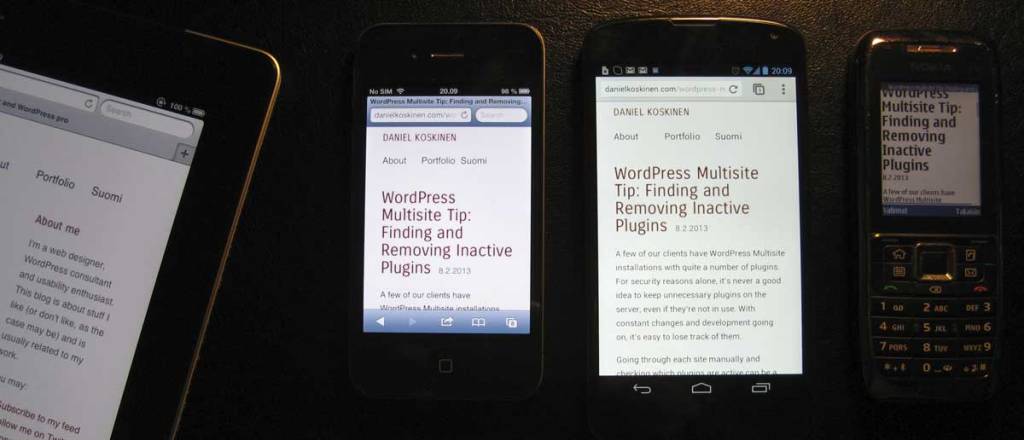
Some years ago browser testing meant just testing in Firefox, Safari and possibly Opera, and cursing and testing in IE6. Good standards support in current browsers has made development easier on one hand, but more complex than ever on the other hand with the demands of responsive design, the rise of mobile and websites themselves becoming more advanced.
Now on the desktop we have to worry about Chrome, Firefox, Safari, Internet Explorer 7,8,9 & 10, and on ‘mobile’ there’s at least Safari for iOS (phone and tablet), Windows Phone, multiple versions of the Android Browser, Chrome for Android, the BlackBerry Browser, Firefox, Opera Mobile and Opera Mini.
This post describes a snapshot of my current browser test setup and it’s the third part in my “web dev on Mac OS X” series. The first two were about utilities and web development apps. I’ll try to keep this series of posts up to date as the tools of the trade change.
Latest versions of Chrome, Firefox, Opera and Safari
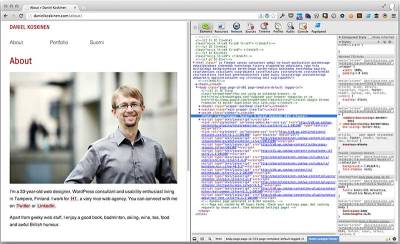
You should of course have all the latest versions of the most popular desktop browsers. Ideally it would be a good idea to have older versions too, but since both Firefox and Chrome update themselves automatically, this is not much of an issue (see Arstechnica’s browser share analysis from last October)
Since Firefox 3.6 was the last version not to be updated automatically, I like to keep it around, since it has quite a few issues with some HTML5 elements and CSS3. An easy way to install an old version of FF alongside the current version is via portableapps.com.
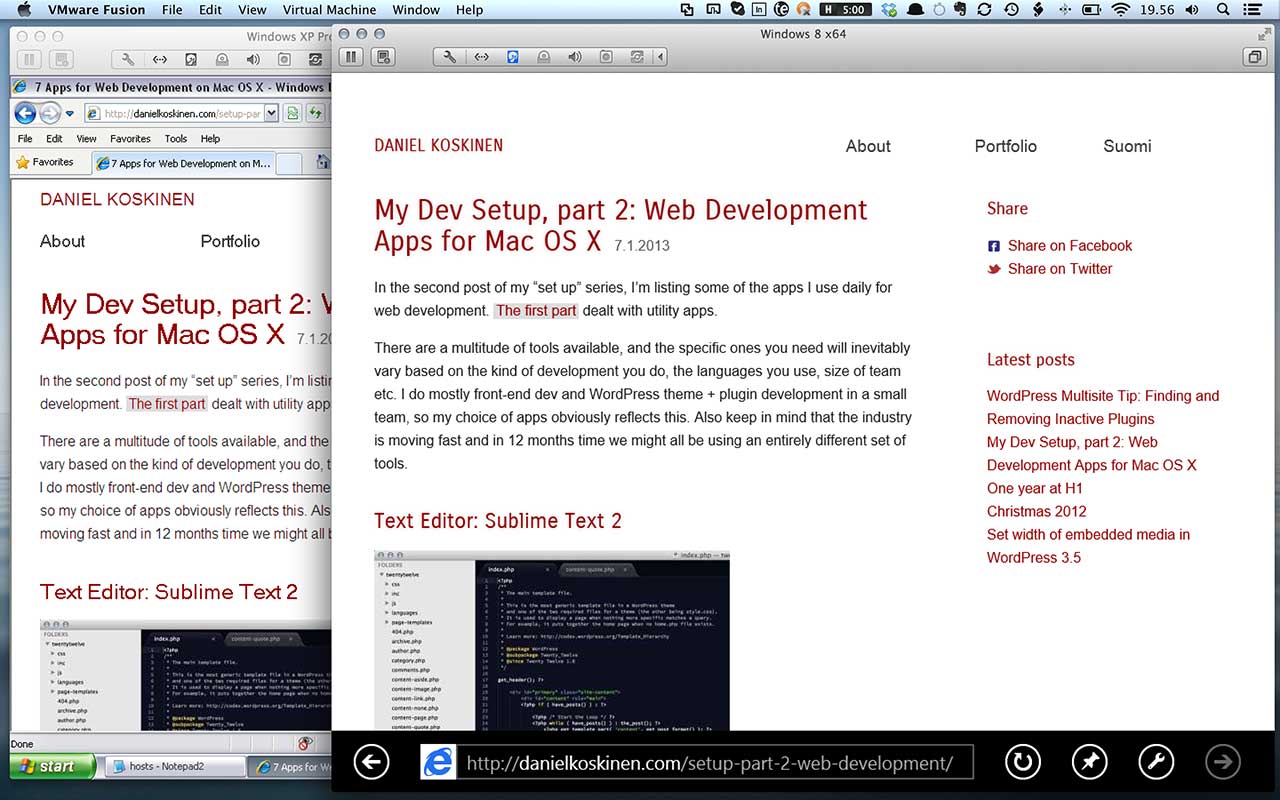
Internet Explorer 7, 8, 9 & 10 in VMWare
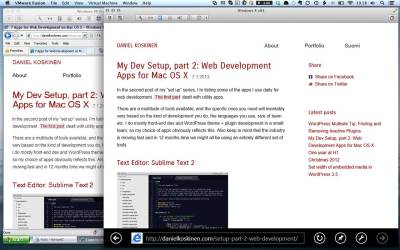
Internet Explorer testing is annoying, because installing multiple stand-alone versions of IE is difficult, and in some cases impossible. I currently have a VMWare virtual machine running XP with IE versions 6,7 and 8, installed using Multiple IE. Unfortunately this setup is somewhat buggy, but it works. I have a separate Windows 7 and 8 VM’s running IE 9 and 10 respectively. This can get messy and requires a lot of HD space. Also, testing local websites requires editing the hosts file of each VM.
Microsoft offers free VM images for IE7-10.
Mobile testing
The Real Thing
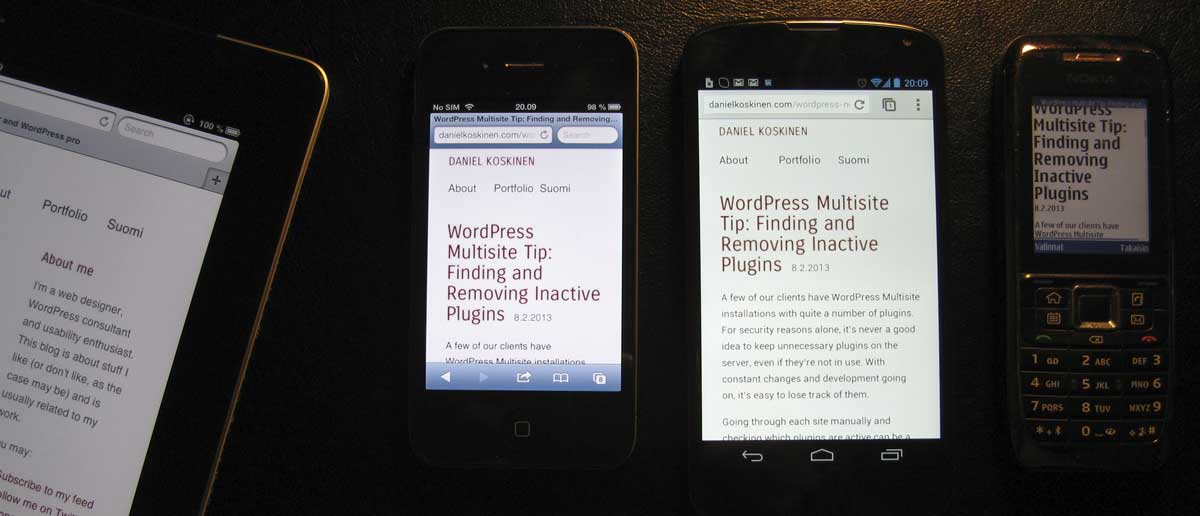
Testing on real devices is essential, and at least before going live I try to test on as many devices as possible. Since my own collection is limited (Android, iOS and S60) and there’s no open device lab near me, I occasionally visit the local department store and try out all the phones on display. Necessary, but not very practical for quick debugging.
Adobe Edge Inspect

For devices that support it (ie. Android and iOS), Adobe Edge Inspect is a great time saver. Basically it allows you to browse the same site synchronously on your desktop and your mobile via a mobile app and a browser extension. Even Edge Inspect doesn’t allow browsing local sites though, and that’s where the next solutions come in.
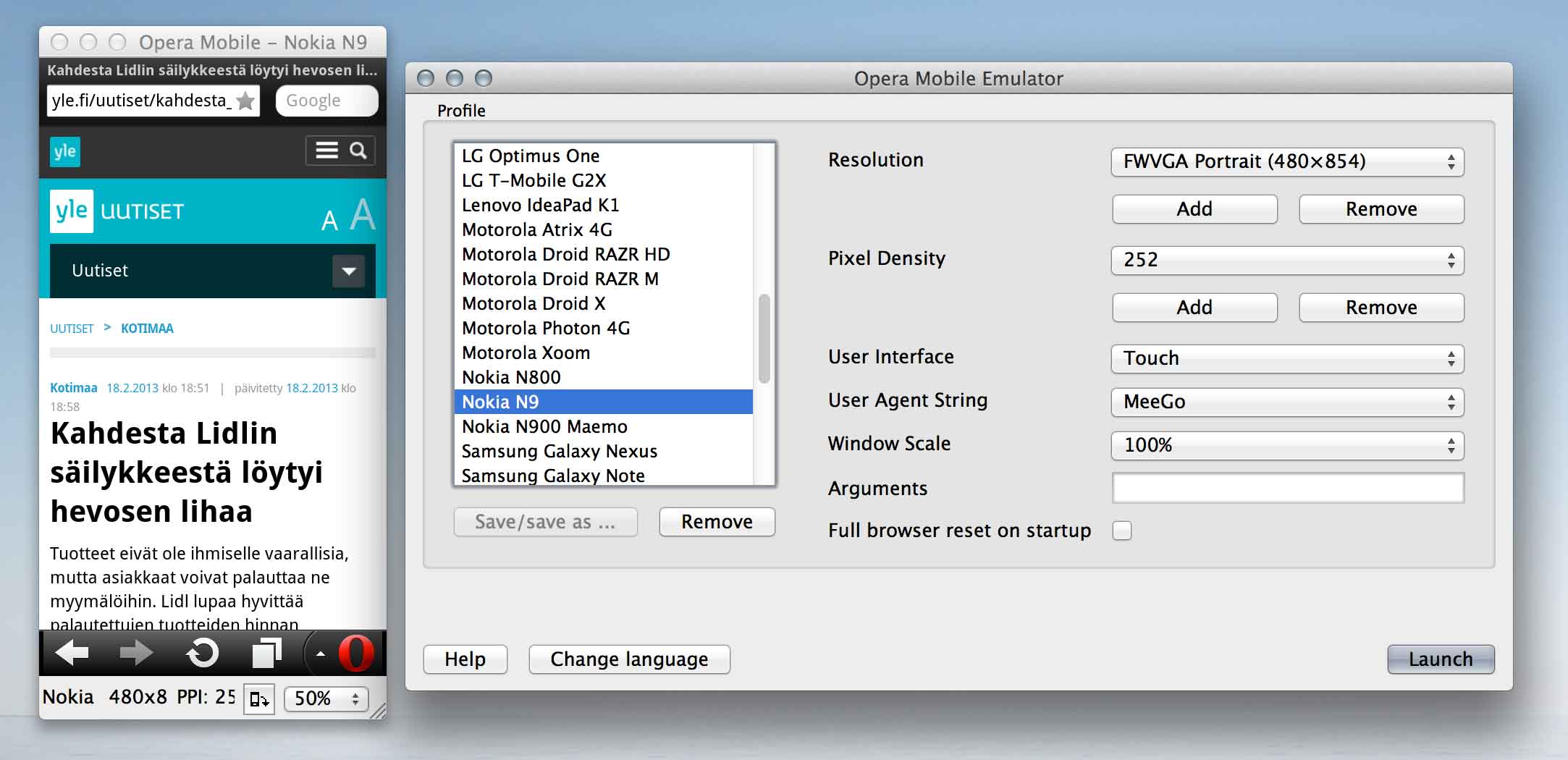
Opera Mobile Emulator
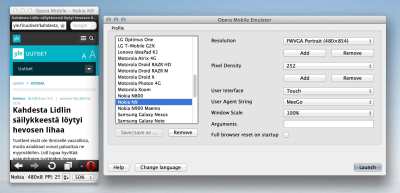
Opera Mobile Emulator simulating a Nokia N9 The Opera Mobile Emulator is an excellent and easy way to test a responsive web site in a huge number of different sized displays. It’s a useful tool whether your users use Opera or not.
iOS Simulator
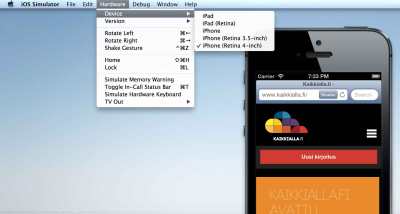
The free Mac OS X Developer Tools include an iOS simulator, which is at least 99% identical to the actual devices (iPhones and iPads). The emulator allows rotating the device, simulated shakes etc. This is probably the mobile testing tool I use the most.
Going forward: Remote virtual machines with Browserstack
Maintaining all these emulators is messy, to say the least. So I’ve been eyeing Browserstack, which allows testing in IE 6-10, recent versions of Chrome, Firefox, Opera, and best of all, emulators of most Android & iOS devices of significance. From my point of view the only thing missing is Windows Phone. Oh and Symbian would be nice too.
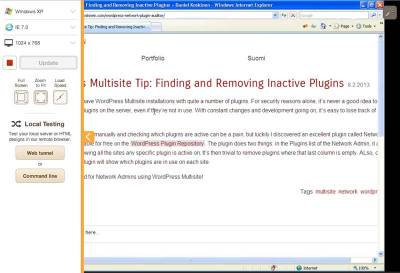
The interface is really easy to use and straightforward. You input the address you want to test, choose an operating system and browser, and that’s it. Using a remote desktop via a browser is of course fairly slow, but the really killer feature of Browserstack is the ability to test local sites (like testsite.dev). This often makes Browserstack more convenient than the alternatives.
Browserstack is a subscription service (starting at $19 per month for an individual user). If you feel like trying it out, there’s a Microsoft-sponsored three-month free trial available. CrossBrowserTesting is another similar-looking service, although I haven’t tried it out.
Final Words
Browser testing is a complicated business, and your needs will depend on the type of site you’re developing and user demographic. Testing in more than one browser is a start, but mobile testing has also become a must. In a year or two it might even be more important than desktop browser testing, if it isn’t already.
Testing on a real device gives a good feel to the restraints of that device, but remember your iPhone/Samsung/Nokia model isn’t the only one out there. As more and more varied devices enter the market and testing needs get more complex, tools like Browserstack are likely to be the only realistic testing option for the vast majority of designers and developers in the future.
-
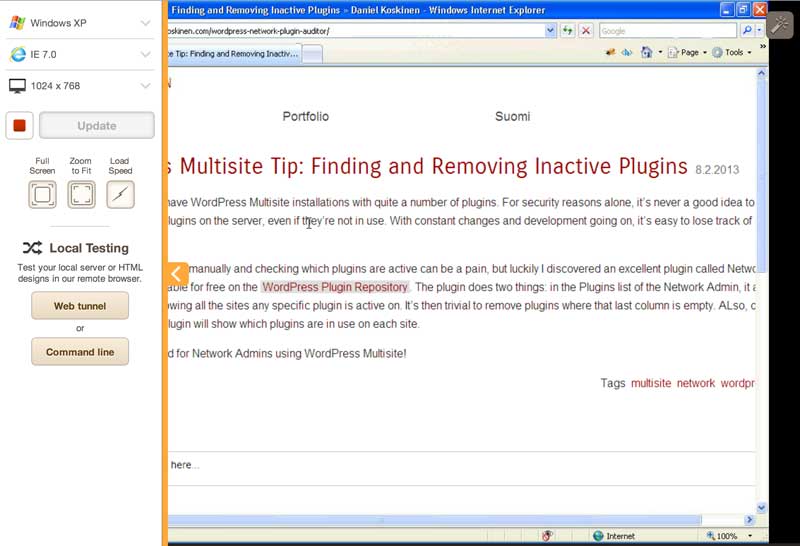
WordPress Multisite Tip: Finding and Removing Inactive Plugins
A few of our clients have WordPress Multisite installations with quite a number of plugins. For security reasons alone, it’s never a good idea to keep unnecessary plugins on the server, even if they’re not in use. With constant changes and development going on, it’s easy to lose track of them.
Going through each site manually and checking which plugins are active can be a pain, but luckily I discovered an excellent plugin called Network Plugin Auditor, available for free on the WordPress Plugin Repository. The plugin does two things: in the Plugins list of the Network Admin, it adds an extra column, showing all the sites any specific plugin is active on. It’s then trivial to remove plugins where that last column is empty. ALso, on the Sites page the plugin will show which plugins are in use on each site.
Highly recommended for Network Admins using WordPress Multisite!
-
My Dev Setup, part 2: Web Development Apps for Mac OS X
In the second post of my “set up” series, I’m listing some of the apps I use daily for web development. The first part dealt with utility apps.
There are a multitude of tools available, and the specific ones you need will inevitably vary based on the kind of development you do, the languages you use, size of team etc. I do mostly front-end dev and WordPress theme + plugin development in a small team, so my choice of apps obviously reflects this. Also keep in mind that the industry is moving fast and in 12 months time we might all be using an entirely different set of tools.
Text Editor: Sublime Text 2
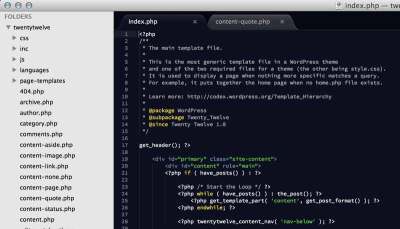
I’ve written about Sublime Text in an earlier post, but I’m still going to mention it. It’s one of the best code editors out there at the moment, if not the best. Highly extensible, there are plenty of good additions relating web development and WordPress.
Get Sublime Text 2 here: http://www.sublimetext.com
CodeKit for Sass & Compass
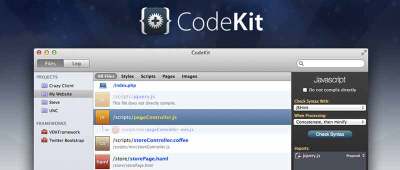
Sass is a robust CSS preprocessor that runs on Mac, Windows and Linux/Unix, and I’ve used it pretty heavily for the last 2 years. It allows extending CSS with variables, nested rules, logic, inheritance and mixins, among other neat things. It can be installed and run just fine from the command line as a Ruby gem, but recently we’ve started using Codekit, a marvellous app which takes care of compiling Sass (or Less/Stylus/HAML/Coffeescript etc) into final code in a nice, GUI-configurable fashion. It will also refresh your browsers automatically on save, combine + compress JavaScript and even optimise image files.
For an introduction to Sass, go to http://sass-lang.com/
Codekit ($29) http://incident57.com/codekit/
Version Control: Tower & GitBox
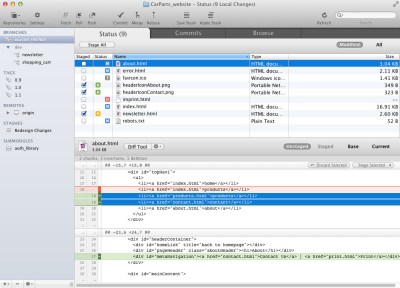
After having used Git for the last couple of years, it’s almost hard to imagine web development without some kind of version control. Learning at least the basics of git on the command line is most certainly recommended, but day-to-day I find a good GUI client is very handy. For many small projects the simple and elegant Gitbox (http://gitboxapp.com/, 13.99 € on the Mac App store) is quite enough, but for most projects I use Tower (http://www.git-tower.com/, 49.00 €).
I’ll be expanding on how we use Git in WordPress projects in a later post.
Diff with Kaleidoscope
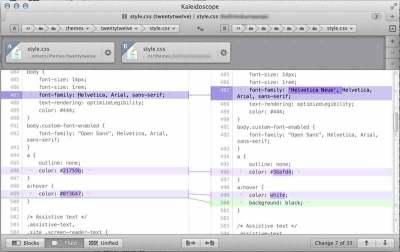
Sometimes (ie. often) you get conflicts when merging somebody else’s code with your own. A good merge tool helps, and for the Mac you can use either the free FileMerge included in the Mac OS X Developer Tools, or the excellent Kaleidoscope. Kaleidoscope used to be just a really good (and pretty) file comparison tool, but in its latest version 2 beta it includes merging capabilities for text and folders.
Download the trial here: http://www.kaleidoscopeapp.com/
PHP Error Monitoring: Console
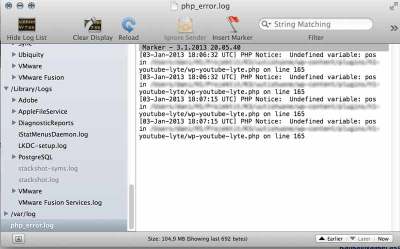
Thanks to my excellent colleague Marco, I’ve discovered how useful the built-in OS X Console.app can be for tracking down PHP errors when doing local WordPress development. This allows you to easily view any errors without printing them out using WP_DEBUG and messing up everything.
MySQL Admin: Sequel Pro
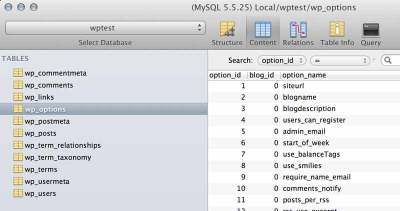
For both local and remote MySQL administration, there’s nothing better than Sequel Pro. And it’s free.
WP-CLI for command-line WordPress
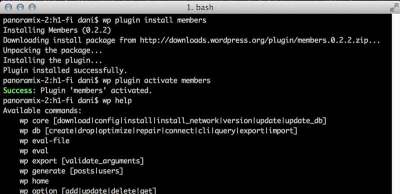
When developing multiple WordPress sites locally or remotely, activating and deactivating plugins and themes via the admin interface can become tedious. For geeky-minded people, there’s WP-CLI, a simple command-line interface for creating and managing WordPress installations. Quoting from the website:
You can update plugins, set up multisite installs, create posts and much more.
That’s all! In the next post in this series, I’ll look into my browser testing setup.
-
One year at H1

Yesterday marked one full year working for my current employer, H1. Professionally, this has been perhaps the most interesting and rewarding time I’ve ever had, despite working most of my time from home. So big thanks to my colleagues Aki, Jaana and Marco!
-
Christmas 2012

This Christmas, there was no shortage of snow! Or books, for that matter. The top three in the above picture I’ve already finished, the encyclopaedia of Wine (Viini) will probably take some more time to wade through though, as will the bottle of fine Caol Ila single malt.
Happy New Year everyone, let’s hope 13 is a lucky number!










-
Set width of embedded media in WordPress 3.5
In WordPress 3.5, there’s no more option to set the width and height of oEmbed-embedded media (Youtube, Vimeo, Flickr, Twitter etc) in the admin interface. The max width is now automatically the width defined in the functions.php of your theme:
if ( ! isset( $content_width ) ) $content_width = 600;Just change
600in the above code to whatever the width of your main content area is in pixels. More info about the change on WP Beginner. -
My Dev Setup, part 1: Utility Apps

This is the start of a series of posts on my current web dev setup. The various software I use, how it’s set up etc. Being a big nerd, I enjoy reading descriptions of peoples’ work environments, and I figured it was my turn to chip in. In this first post, I’m starting with a bunch of nifty utility apps that help me stay productive. Unfortunately only some of them are free, but I find in general you get what you pay for, especially when it comes to Mac OS X apps.
An app launcher: Alfred

Alfred is a beautiful, minimalist and fast app launcher for OS X which I’ve been using for the last year. In addition to launching apps, it can be used for search (like Spotlight), clipboard history, controlling iTunes and many many other things. Alfred is free, but the Power Pack extension costs GBP 15.
Dropbox

Dropbox probably doesn’t need an introduction. Since its launch, I’ve used it to sync files between my own computers and share files with colleagues and clients. I still use it extensively, but for some work activities it has been somewhat replaced by git version control and Basecamp. To get 500 MB extra, use my referral link: Get Dropbox
BetterTouchTool

If you have an Apple laptop, a Magic Touchpad or Magic Mouse (or all three), BetterTouchTool has some nice options to configure gestures and keyboard shortcuts. It also gives you window snapping à la Windows 7. And it’s free!
iTerm

I recently discovered iTerm. It’s basically an alternative to the built-in Terminal.app, and mostly I don’t find them that different from one another. The thing that won me over was the split-pane view, which is especially useful in full screen mode.
TextExpander

For all sorts of reusable text and code snippets, TextExpander is indispensable. There’s also a great TextExpander tutorial on TutsPlus.
PathFinder

The default OS X Finder is OK, but Path Finder is the same thing on steroids. Obviously meant for power users, it has (among other things) a built-in terminal, dual-pane file browsing, Git & Subversion support, batch renaming etc.
That’s all for now, to be continued!
-
WordCamp Stockholm
Thanks to my employer, I got to go to WordCamp Stockholm, which was held yesterday at the Waterfront Congress Centre in the heart of the city. Witnessing the enthusiasm of Swedish WordPress developers and users was inspiring, and we picked up some good plugin and development tips along the way.
For those who understand Swedish, most of the sessions were filmed and can be found on Bambuser, tagged ‘wpstlhm’.
(more…)
-
Subscribe
Subscribed
Have a WordPress.com account? Log in now.

